Viewing organisations
For users with the highest level of permissions, the Organisations List shows multiple organisation types:
• Automated Customer
• Customer
• Customer Group
• GDSP Enabled Operator
• GDSP Enabled Virtual Operator
• Operator Group
• Reseller
• Sub-customer
These can be checked or unchecked to change the types of organisations that appear in the list via the Filters tab in the top left corner.
And you can further tailor the content of the Organisations List by clicking on Filters and entering an Organisation Name, Parent Organisation, Type, Organisation ID, and/or Description.
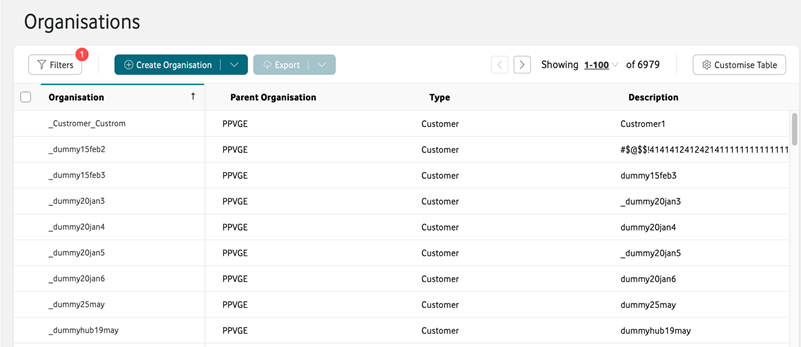
Another way to control the information presented in the Organisations List is by selecting or deselecting the columns shown using the Customise Table tab in the top right corner.
There are nine columns available, from which you can choose the combination that best suits your needs:
1. Organisation
2. Parent Organisation
3. Type
4. Description
5. Country
6. Organisation ID
7. Customer BAN
8. Data Period
9. Billing Period Start Day
By clicking on the column header, you can also order the columns alphabetically or numerically to make it easier to find the information you seek.
And if you have the necessary permissions, you can select a row to Export or on which to perform an Action by clicking on the checkbox in the relevant row.
If these checkboxes are available, there will also be a checkbox in the column headers that can be used to select all relevant rows in the list.
To view the Organisations List
To access the Organisations List from the Vodafone Business Managed IoT Connectivity Platform home page, simply click on Organisations in the menu on the left of the page - then on All Organisations in the dropdown menu that appears.
If you have the required authorisation level, you can then view customer organisation Details such as SIMs and Connectivity Services by clicking on the Name of the relevant customer organisation then selecting Details and expanding a section to show more details.
Can't find what you're looking for?

Your IoT administrator
Talk to the IoT administrator in your company. They understand your system best.